
A Google Sheets Budget Template That Updates From Your Australian Bank
Redbark builds a ready-made budget spreadsheet in your Google Drive and fills it from your Australian bank through Open Banking. Here is what each tab does, how to set budgets, and how it stays up to date.

The short answer
Redbark creates a budget template in Google Sheets for you and keeps it filled with transactions from your Australian bank. When you add Google Sheets as a destination, the default choice is a Budget spreadsheet: a file called "Redbark Budget" with Dashboard, Monthly Budget, Monthly Spending, Transactions, Categories and Accounts tabs. Your bank data arrives through Open Banking (the Consumer Data Right), so there are no CSV exports and no formulas to write.
The template costs nothing extra. It comes with Redbark, which has a 7-day free trial with no credit card, then plans from A$10/mo billed annually.
Why not a downloadable template?
Most budget templates for Australians are a blank sheet with some formulas. They work until you stop pasting in your bank exports, which for most people is about week three.
The hard part of a spreadsheet budget is the data, not the formulas. So instead of a file you copy, Redbark builds the spreadsheet in your own Google Drive and writes every new transaction into it. The reports update themselves because the data does.
What do you get in the budget spreadsheet?
Every bank account you sync writes to the same Transactions tab. The other tabs read from it. Here is each one.
Dashboard
The Dashboard opens first. On the left is your net worth: the total, how much it has changed over the months shown, and a chart by month. Beside it is a summary of assets and liabilities and a "By month" table. Below that is a list of your accounts with balances.
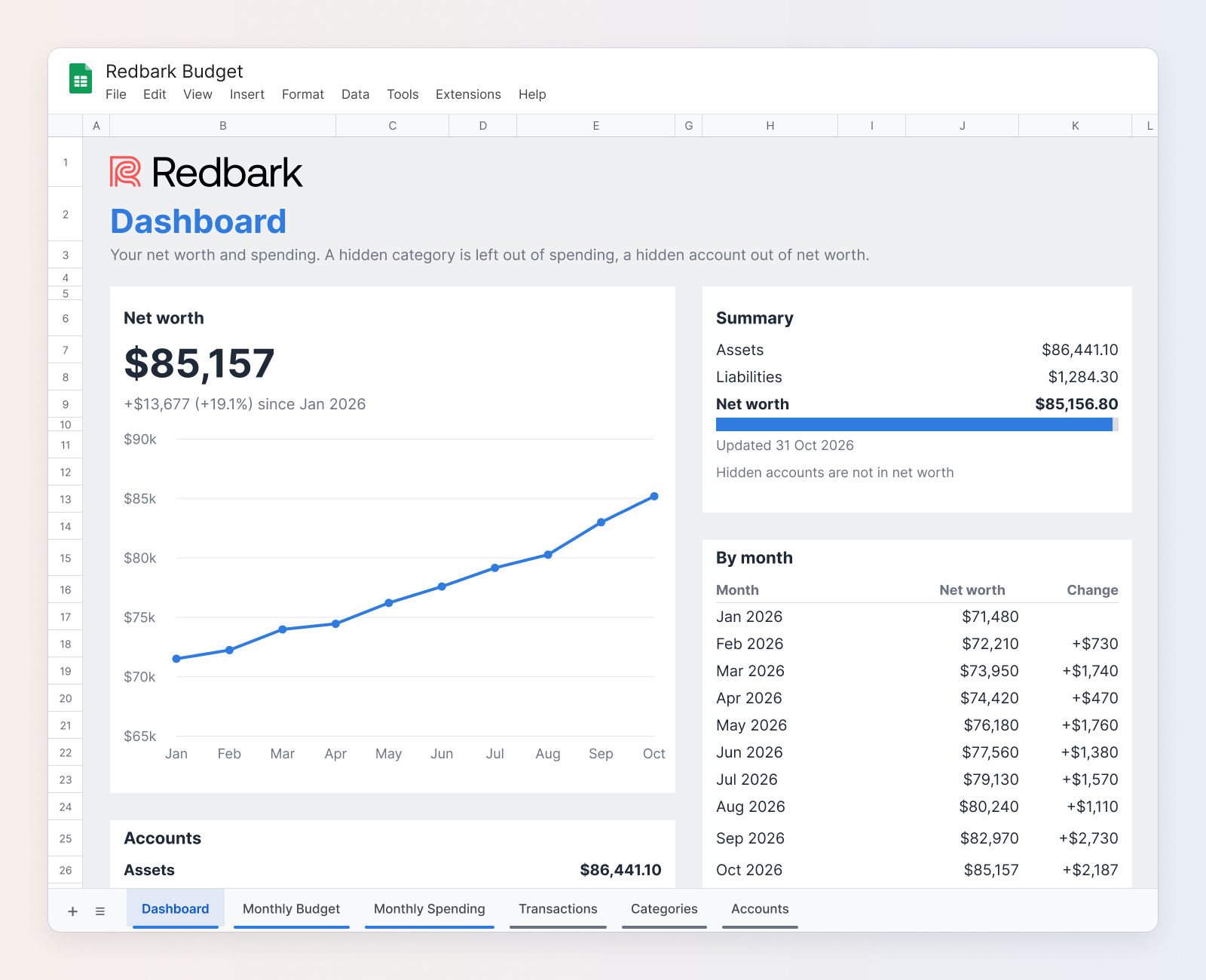
Further across is a Spending section. You pick a start date, an end date, whether to break it down by category or group, and expense or income. It shows totals for income, spending, transfers and anything uncategorised, a breakdown by category, and income and spending by month for the last 12 months.
Net worth history builds itself. Redbark works it out from your current balances and the transactions after each month end, so the chart has history from the first synced month, not just from the day you signed up.
Monthly Budget
Pick a month from the yellow dropdown. Three cards show income against what you budgeted, spending against budget, and net cash flow with what is left to spend. Below them, every category sits in its group with Budget, Actual and Left columns and a progress bar.
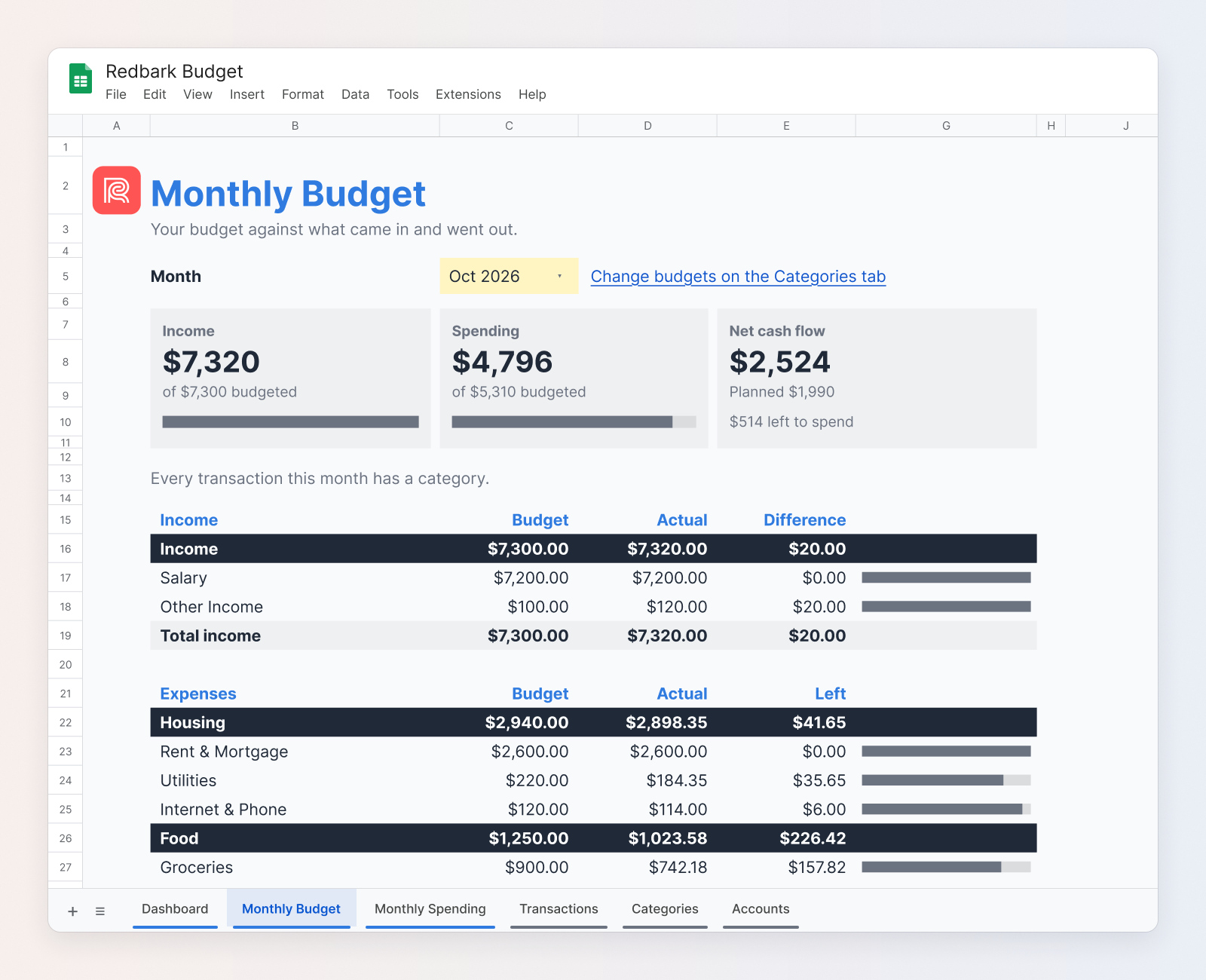
If any transactions that month have no category, a line under the cards tells you.
Monthly Spending
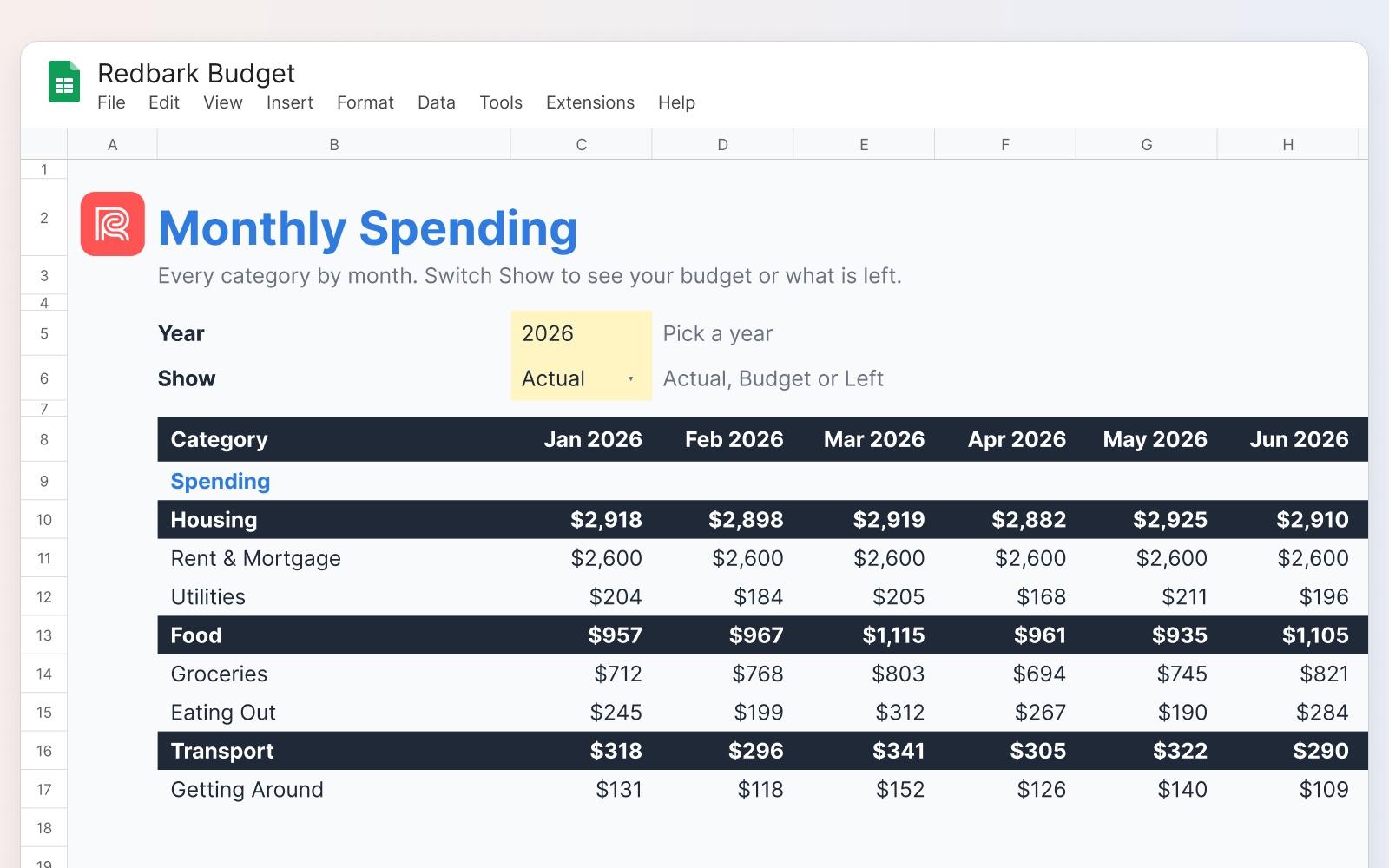
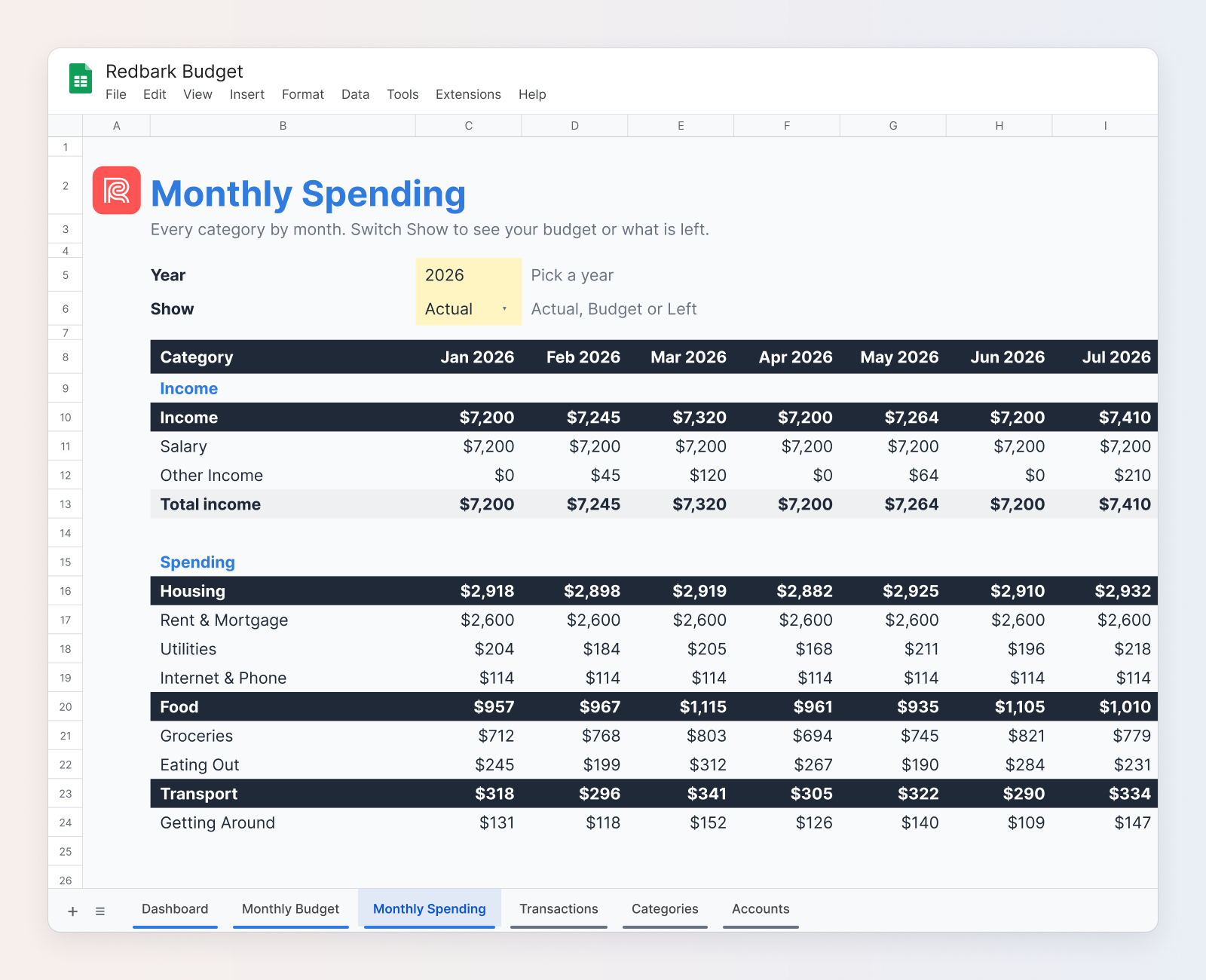
This tab shows every category by month for a year. Type a year, then switch Show between Actual, Budget and Left. It is the quickest way to see whether groceries crept up over winter or how eating out compares month to month.
Transactions
This is where Redbark writes. It uses the same first twelve columns as a plain Redbark sheet: Transaction ID, Date, Description, Amount, Currency, Direction, Category, Merchant, Account, Status, Class and Post Date. After those come Subcategory, Custom Category, Custom Category Group, Note, Tags and Categorised By.
Dates are real dates and amounts are real numbers, so sorting and filtering work as you expect. Spending is negative and money in is positive. Only posted transactions sync to a budget spreadsheet, so pending ones never appear and then change.
Categories
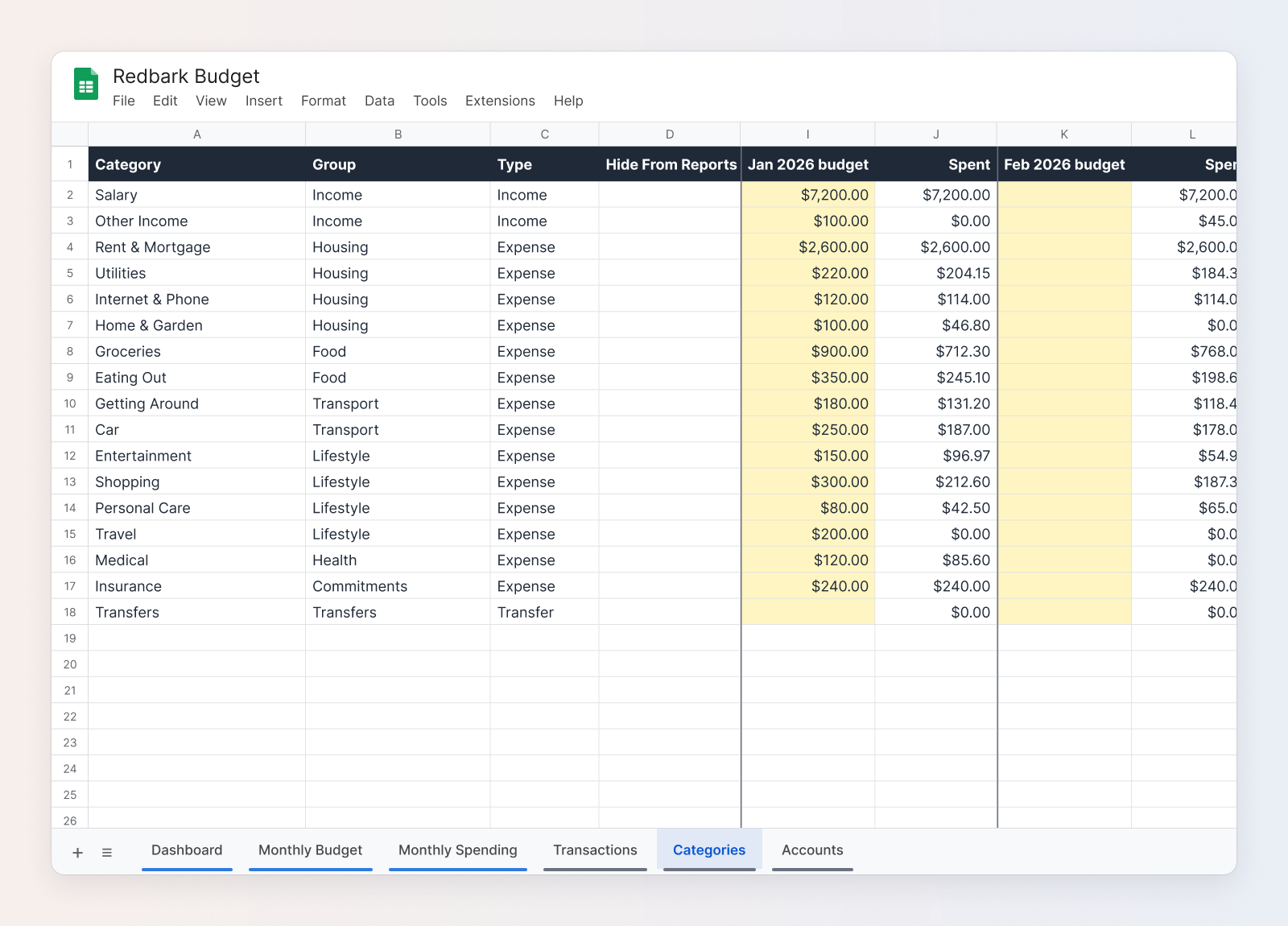
One row per category, with its Group and Type (Income, Expense or Transfer). To the right, each month has a pair of columns: a yellow Budget column you type into, and a Spent column worked out from your transactions.
Accounts
One row per bank account with its institution, class (asset or liability) and latest balance. Redbark rewrites this tab on every sync. A hidden Balance History tab keeps a record for the net worth reports.
How do you set it up?
- Sign up for Redbark at app.redbark.com. The 7-day trial does not need a card.
- Connect your bank. Click "Add Connection" and choose Australian Banks. You approve a CDR consent with Fiskil, an accredited data recipient, by logging in with your bank directly. CommBank, ANZ, NAB, Westpac, Macquarie, Up and 100+ other banks and credit unions are supported.
- Add Google Sheets. Sign in with Google, choose Budget spreadsheet (it is preselected and marked Recommended), and keep the name "Redbark Budget" or type your own.
- Create a sync. Pick the accounts to include. They all write to the Transactions tab.
Redbark asks Google only for the drive.file permission, which covers files Redbark creates. It cannot see your other spreadsheets.
The Google Sheets guide walks through the connection screens in more detail.
How do you set your budgets?
Budgets live on the Categories tab. The Monthly Budget tab has a link straight to the right month.
- Find the category, such as Groceries.
- Type an amount in the yellow Budget column for the month you want it to start, for example A$900 in "Jan 2026 budget".
- Leave later months blank. A blank month uses the last budget before it, so A$900 carries forward until you type a different amount.
- To change a budget from a certain month, type the new amount in that month. To stop it, type 0.
The Spent column beside each month fills in from your transactions. Redbark adds new months as the year goes on, so there are always months ahead to budget into.
How does it stay up to date?
Syncs are event driven. When your bank has new transactions, Fiskil notifies Redbark, and Redbark adds the new rows to Transactions, usually within hours of a transaction posting. You can also press Sync Now in Redbark at any time.
Each sync also refreshes Categories, Accounts and Balance History. The report tabs are formulas over those tabs, so they update as soon as the rows land.
Redbark never stores your transactions in its own database. They pass through in memory and go straight to your spreadsheet. Our security post explains how.
What can you safely edit?
Yellow cells are the ones you type into: budgets, the month picker, the year and Show options, and the Dashboard date filters.
On the Transactions tab, these are yours to change:
- Custom Category and Custom Category Group. Change a category from the dropdown and the reports move it straight away.
- Note and Tags. Add whatever helps you, like "reimbursable" or "holiday".
When your bank later changes a transaction, Redbark updates only the cells you have not edited. Your categories, notes and tags survive every sync. The Categorised By column shows who set each category: Bank, Rule, Learned or You.
Leave the headings, the hidden columns and the hidden tabs alone. Redbark writes each column by position. If headings are moved, the sync stops rather than write into the wrong place. Put the headings back, or use Google Sheets version history, then turn the sync back on.
If you delete a transaction row, it stays deleted. Repair budget in the sync's settings adds missing transactions back without erasing your edits.
Tips for Australian households
Shape your categories first. Redbark starts you with a default set of groups: Income, Housing, Food, Transport, Lifestyle, Health, Commitments, Giving & Government, Transfers and Other. Rename or add categories in the Redbark app and the Categories tab follows. You can also rename or regroup a row in the sheet, and it keeps its budgets and transactions.
Let Redbark learn. When you recategorise a transaction in the sheet, Redbark learns from it. New transactions from the same merchant that arrive without a category get yours, marked Learned.
Use rules for anything predictable. Rules in Redbark can recategorise, rename, add notes and tags, or skip transactions before they reach the sheet. A rule that files your rent payment to Rent & Mortgage means you never fix it by hand.
Handle transfers. Money moving between your own accounts, such as from an Up spending account to a savings account, belongs in a Transfer type category. Transfers show in their own total and stay out of spending.
Split shared costs. To split a shared bill, copy the transaction row and divide the amount between the two rows. Keep the same Transaction ID on both. Redbark leaves split rows alone.
Hide what does not belong. Mark a category "Hide" on the Categories tab to leave it out of the reports. On the Accounts tab, hiding an account leaves it out of net worth, but its transactions still count in spending until you give them a hidden category.
Add your own analysis on a new tab. The Transactions tab has real dates and signed amounts, so standard formulas work. For example, October grocery spending:
Column D is Amount, N is Custom Category and B is Date. The minus sign turns spending, which is negative, into a positive number.
FAQ
Is the Google Sheets budget template free? The template has no extra cost. It comes with Redbark. Redbark has a 7-day free trial with no credit card, then plans start at A$10/mo billed annually or A$12/mo billed monthly. See pricing.
Which Australian banks work? Any of the 100+ banks and credit unions available through Open Banking, including CommBank, ANZ, NAB, Westpac, Macquarie and Up. Redbark also connects New Zealand and US banks.
Can I put several bank accounts in one budget? Yes. Every account in the sync writes to the same Transactions tab, and the reports cover them all.
Does it include pending transactions? No. Budget spreadsheets sync posted transactions only.
I already sync to a plain Google Sheet. Can I switch? Yes. Add a new Google Sheets destination, choose Budget spreadsheet, and create a sync to it. Your existing sync carries on as before.
What if I want a plain export instead? Choose Transactions only when you add the destination. You get the raw transaction columns and can build whatever you like on top.
Can I share the spreadsheet with my partner? Yes. It is a normal file in your Google Drive, so you can share it like any other.